Nesting decides where each flat part sits on which stock sheet, so a job uses as few sheets as possible. SheepMetal's Nest Parts does this inside Grasshopper, straight from the unrolled parts, so you do not export to a separate nesting program and lose the link to your model.
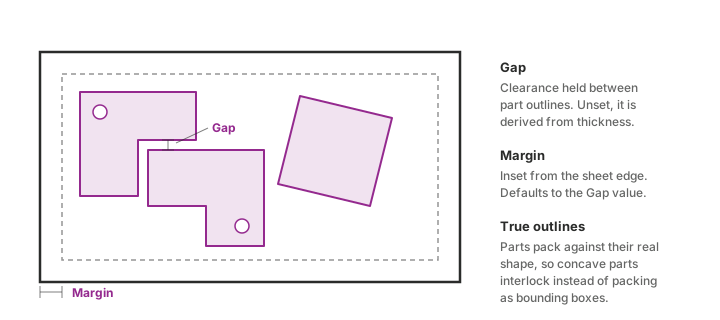
It packs parts against their true outlines, not their bounding boxes: an L-shape nests into the notch of another L-shape.
Set up a job#
- Describe each part with Sheet Properties (SProp) before unrolling: Material, Quantity and Grain. See Utilities.
- Unroll each Sheet with the Unroller (U). Thickness travels with the Unroll Result.
- Describe your stock with one Sheet Stock (Stock) per sheet size: size, thickness, material and how many you have. Quantity 0 means unlimited.
- Wire the Unroll Results and the stock into Nest Parts (Nest).
Settings that matter#
| Setting | What it does | Default |
|---|---|---|
| Gap | Space between part outlines | 1.2 × thickness, at least 2 mm |
| Margin | Unusable border along the sheet edge | Same as Gap |
| Rotation Steps | How many angles each part may try. 4 = 90° steps, 1 = no rotation | 8 (45° steps) |
| Optimize | Keep searching part orders and rotations until the Time Budget is up | Off: one quick pass |
| Respect Grain | Lay each part's grain along the sheet's X axis | Off |
| Allow Flip | Also try parts mirrored. Leave off for brushed or coated sheet | Off |
| Separate Parts | Keep each part type on its own sheets for easier sorting | Off |
Optimize usually buys a noticeably better yield. The Time Budget (10 s) is spent once per material and thickness group, and yield flattens out quickly, so a much longer budget rarely pays off.
Mixed thicknesses and materials#
Parts of different thickness or material never share a sheet. Nest Parts splits them into groups and nests each group on its own stock.
Set Thickness and Material on every Sheet Stock. Stock left at thickness 0 serves any thickness, so on a mixed job one thickness can use up sheets meant for another. Material names must match between part and stock; capitals do not matter.
Use your offcuts first#
Mark an offcut as Remnant on its Sheet Stock, with its real Quantity. Remnants are filled before standard stock is opened, so offcuts leave the rack instead of sitting there.
| Sheet Stock | Size | Quantity | Remnant |
|---|---|---|---|
| Standard stock | 2500×1250 | 0 (unlimited) | false |
| Offcut | 1200×700 | 1 | true |
Check before you cut#
- Info: sheets used, yield per sheet and for the job.
- Unplaced: empty when every part fits. Otherwise it gives the reason: no matching stock, part larger than every sheet, or stock used up.
Send it to the machine#
- Result holds every sheet with its parts in the sheet's own coordinates, lower-left corner at the origin. Use it for CNC or machine-file export. The Outlines and Sheet Frames outputs are laid out side by side for preview only.
- Transform moves anything else that belongs to a part, such as marking lines, drill points or labels, to where the part was placed. It comes back on the same tree path the part went in on.
- On Sheet tells you which sheet each copy landed on.